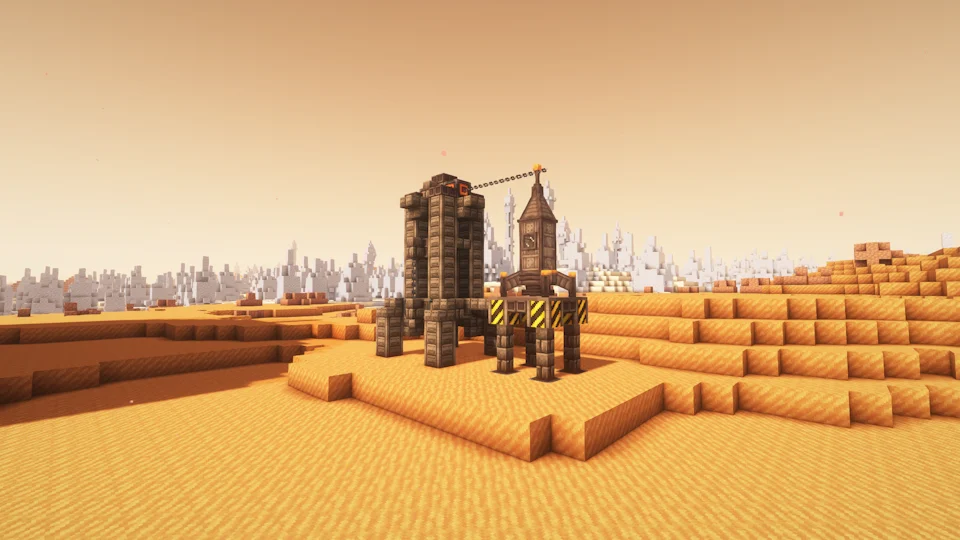
A reliable Adastra mod download setup starts before the file reaches the mods folder. The most common installation failures come from mixing Minecraft versions, loaders, dependencies, or profile folders.
1. Confirm the Minecraft version
Start with the exact game version used by the instance. A mod build for a different Minecraft release should be treated as incompatible unless the project documentation explicitly says otherwise.
2. Match the mod loader
Use the loader family and loader version required by the Ad Astra build. Do not assume a file built for one loader works under another.
3. Install dependencies together
Loader errors often identify a missing or incompatible dependency. Keep each dependency on the same Minecraft and loader target as the mod.
4. Use the correct instance folder
Launchers can create separate game directories per profile. Put the mod file in the active profile’s mods folder, not simply the first .minecraft folder you find.
5. Back up and test
Copy your world and configuration files before changing an established mod list. Launch, check the mod list, and test a copied world before committing to the new setup.
Related setup path
For installation, compatibility, and download context, return to the main Ad Astra mod download section or review the complete guide library.